This article provides the steps for creating a new user in the SolutionLaunch.com platform.
- First, determine whether you are creating a user for your own company or for one of your child companies.
- If you are creating a user for your own company, click on the My Company button in the left-hand menu to navigate to the My Company page.
- If you are creating a user for one of your child companies, click on the Companies button in the left hand menu to navigate to the Companies page, and then click on the desired company to open it.
- If you are creating a user for your own company, click on the My Company button in the left-hand menu to navigate to the My Company page.
- In the company page, click on the Users tab.
- Click the New User button.
- Fill out the Personal Information and Location for the new user.
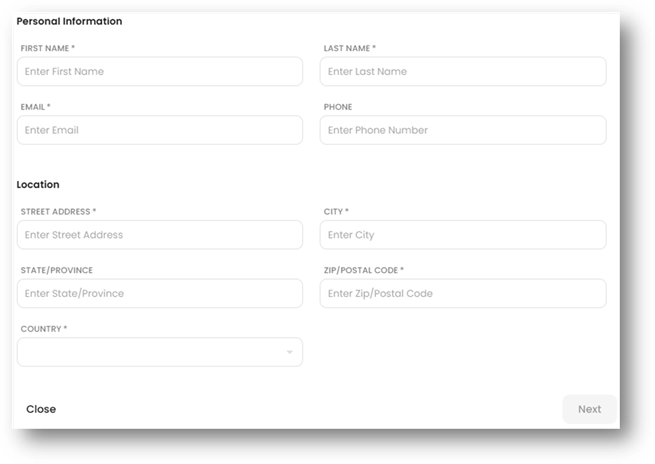
- Click the Next button to proceed.
- Select the Role for the new user. A listing of the permissions granted by a role can be viewed by clicking on that role.
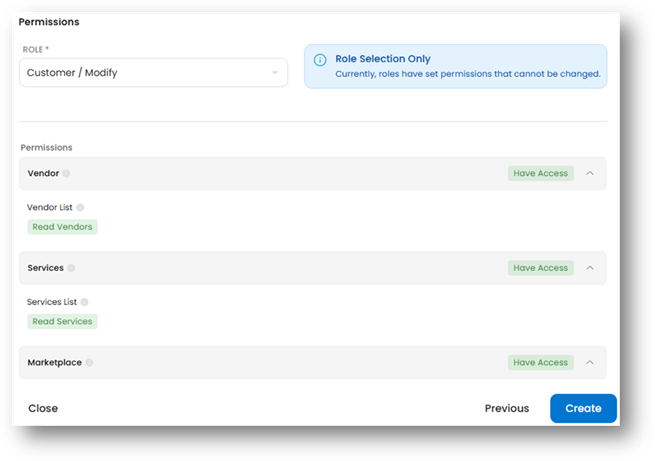
- Once the desired role has been selected, click the Create button to finish.
Was this article helpful?
That’s Great!
Thank you for your feedback
Sorry! We couldn't be helpful
Thank you for your feedback
Feedback sent
We appreciate your effort and will try to fix the article