This article provides the steps for purchasing a new Microsoft subscription for a customer in the SolutionLaunch.com platform. Before any Microsoft services can be purchased, the customer company must have a Microsoft tenant associated with it, and the customer company must have also accepted the Microsoft Customer Agreement.
- Start by clicking the Companies button on the left-hand menu.

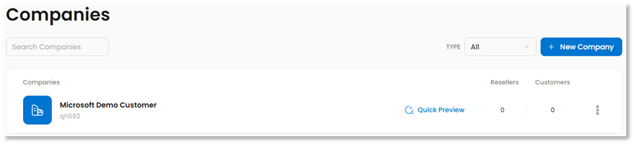
- On the Companies page, click on the name of the desired company to open it.
- Click on the company's Services tab.
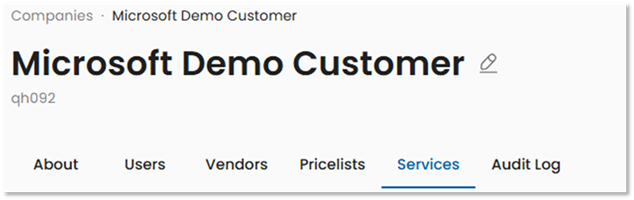
- Click the New Service button.

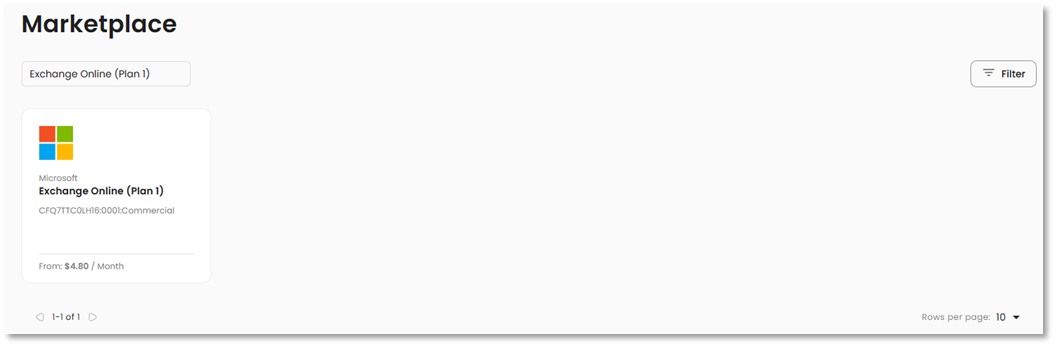
- On the New Service page, locate your desired product and click on its tile.
- Enter the number of licenses to purchase in the Quantity field.
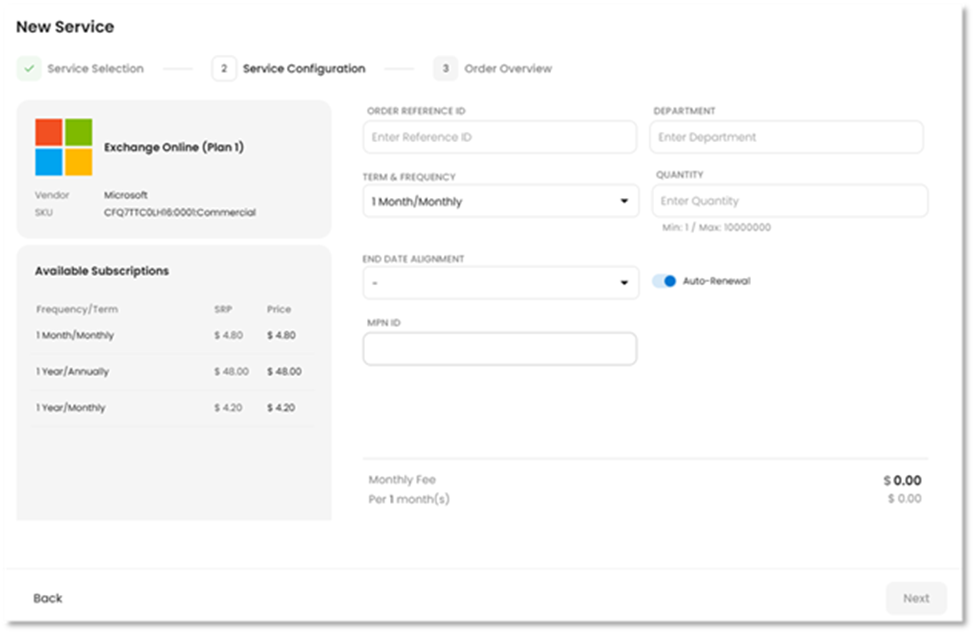
Additional options are:- Order Reference ID & Department
- These fields are optional.
- Term & Frequency:
- 1 Month/Monthly: Monthly commitment, billed monthly.
- 1 Year/Monthly: Annual commitment, billed monthly.
- 1 Year/Annually: Annual commitment, billed annually (upfront).
- End Date Alignment: The end date for a subscription can be set to the end of the month or aligned with another existing subscription.
- Auto-Renewal: Whether the subscription should auto-renew at the end of its term. If this option is disabled, the subscription will expire at the end of the selected term.
- Order Reference ID & Department
- Make your desired selections, then click the Next button to continue.

On the Overview page, review your selections, then tick all checkboxes under Required Acceptance.
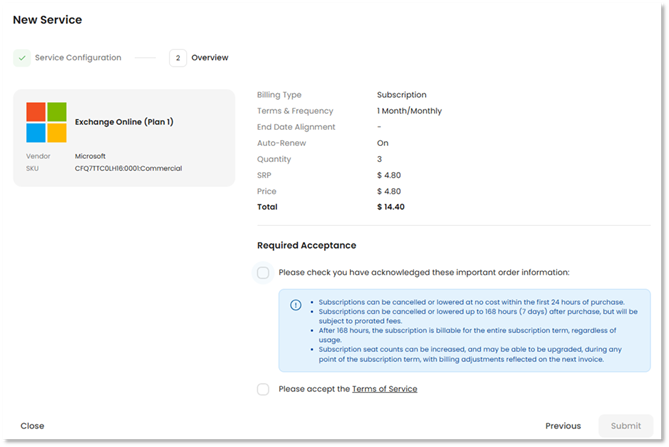
- Click the Submit button to finish.

Was this article helpful?
That’s Great!
Thank you for your feedback
Sorry! We couldn't be helpful
Thank you for your feedback
Feedback sent
We appreciate your effort and will try to fix the article