This article provides the steps for cancelling an existing Microsoft subscription for a customer in the platform. The changes that can be made are subject to Microsoft’s cancellation policy, which is detailed in the following Microsoft Learn article.
https://learn.microsoft.com/en-us/partner-center/customers/new-commerce-cancellation-policy
Subscriptions Within the 7-Day Cancellation Window
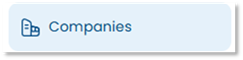
- Start by clicking the Companies tab on the left-hand navigation.
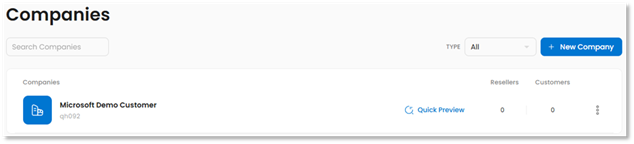
- On the Companies page, click on the name of the desired company to open it.
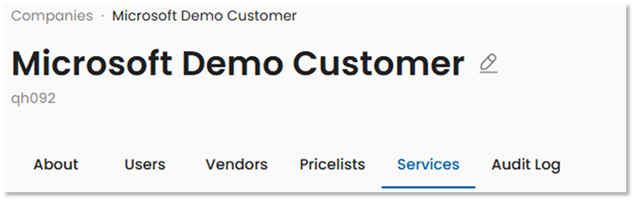
- Click on the company’s Services tab.
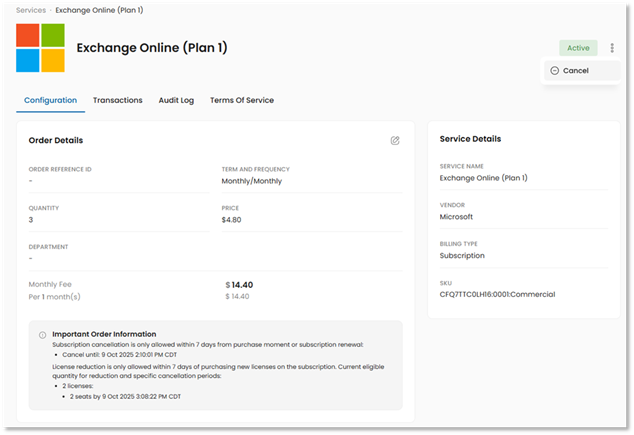
- Locate the desired subscription and click the three dots on the right-hand side of its row. From the dropdown, select View Service.

- Under the Order Details section, determine whether the subscription is within the 7-day cancellation window.
- If the Important Order Information section says “Cancel until…” with a date as shown in the example below, proceed to Step 6 in this article.
- If the Important Order Information section does NOT note that the subscription can be cancelled, please see the “Subscriptions Outside of the 7-Day Cancellation Window” section of this article.
- If the subscription is within the 7-day cancellation window, click on the three dots in the top-right corner and select Cancel.
- When prompted, click Submit to cancel the subscription.
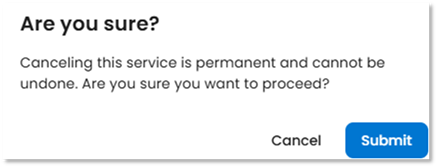
- You should see a Cancellation Successful message appear in the top-right corner.

Subscriptions Outside of the 7-Day Cancellation Window
For New Commerce Experience subscriptions, cancellation is only allowed within 7 days of purchase or renewal. Subscriptions that are outside of the 7-day cancellation window can be set to expire at the end of their term. Please note that subscriptions set to non-renewal will still be billable until the end of their subscription term.
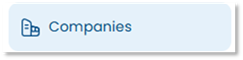
- Start by clicking the Companies tab on the left-hand navigation.
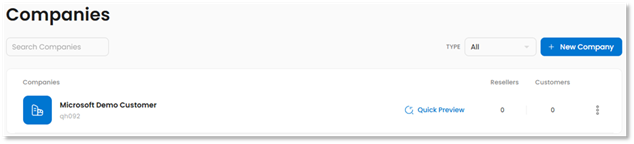
- On the Companies page, click on the name of the desired company to open it.
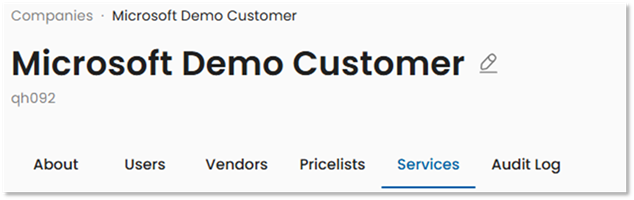
- Click on the company’s Services tab.
- Locate the desired subscription and click the three dots on the right-hand side of its row. From the dropdown, select View Service.

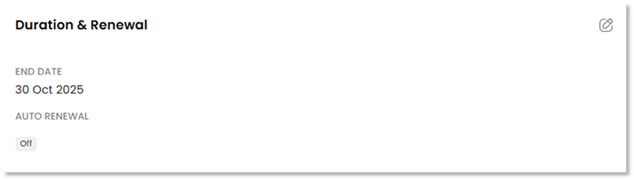
- Scroll down to the Duration & Renewal section.
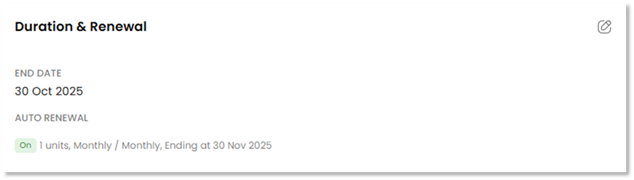
- In the top-right corner of the Duration & Renewal section, click on the pencil icon.

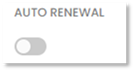
- A switch will appear under the Auto Renewal text.
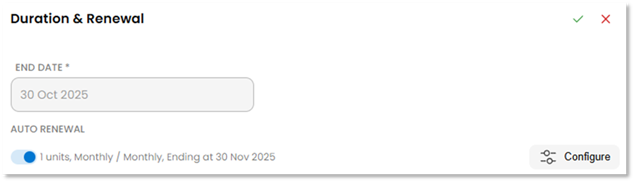
- Click the switch under Auto Renewal to move it to the off position.
- Click the green check mark in the top-right corner of the Duration & Renewal section to submit your changes.
- The Duration & Renewal section will now show that auto-renewal is disabled for the subscription.
Was this article helpful?
That’s Great!
Thank you for your feedback
Sorry! We couldn't be helpful
Thank you for your feedback
Feedback sent
We appreciate your effort and will try to fix the article