This article provides the steps for adding additional licenses to an existing Microsoft subscription.
- Start by clicking the Companies tab on the left-hand navigation.

- On the Companies page, click on the name of the desired company to open it.

- Click on the company’s Services tab.

- Locate the desired subscription and click the three dots on the right-hand side of its row. From the dropdown, select View Service.

- On the Service Details page, click the pencil icon in the top-right corner of the Order Details section.
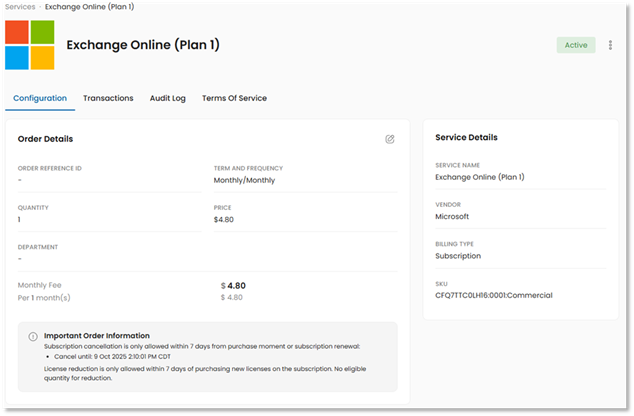
- In the Quantity field, enter your desired license count. The platform will automatically update the price of the subscription.
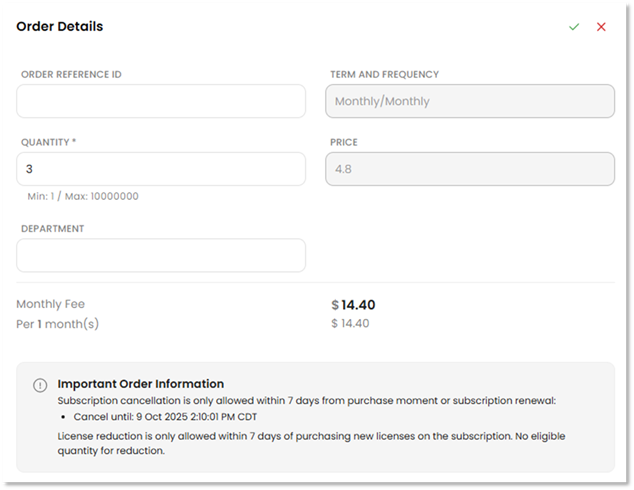
- Click the green check mark in the top-right corner to submit your changes.

Was this article helpful?
That’s Great!
Thank you for your feedback
Sorry! We couldn't be helpful
Thank you for your feedback
Feedback sent
We appreciate your effort and will try to fix the article